🔄 Change Your Passwords Correctly: The Updated 2026 Guide
On this page
Everything you know about changing passwords is probably wrong. The 90-day mandatory password change — once a cornerstone of corporate security policies — has been officially retired by NIST. Research shows that forced rotation actually weakens security, as users create predictable passwords and reuse them across accounts. This guide breaks down the updated 2026 guidance on when and how to change passwords, what to do after a breach, and how to manage credential changes across families and small teams.
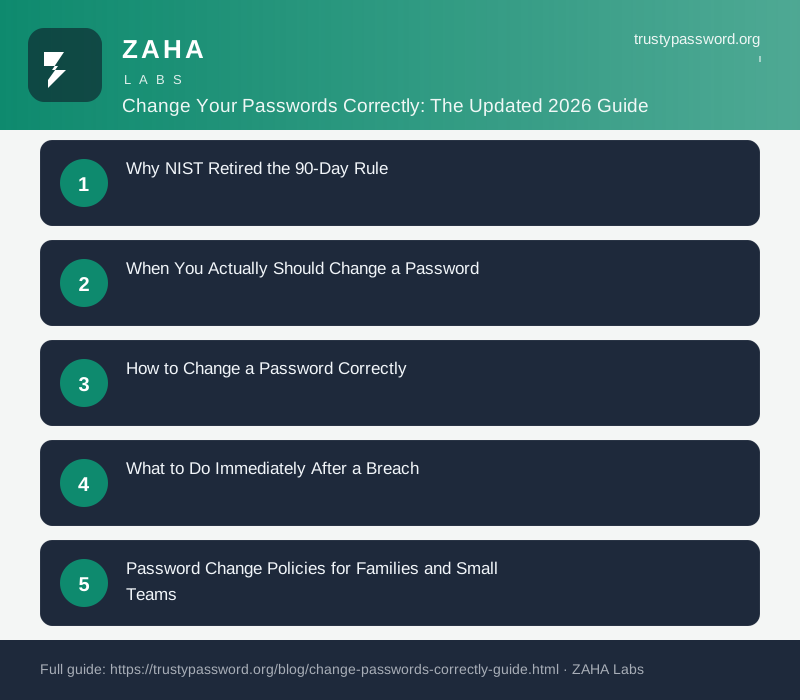
Why NIST Retired the 90-Day Rule
NIST updated SP 800-63B to formally retire the 90-day mandatory password change requirement. The reasoning was based on extensive research showing that forced rotation produces weaker overall security outcomes. When users know they must create a new password every three months, they make predictable modifications — incrementing a trailing number, changing a season name, swapping one word for a synonym. Attackers call this behaviour "credential morphing" and have built it into their cracking dictionaries.
Carnegie Mellon's Usable Privacy and Security Lab conducted a landmark study demonstrating that forced password changes improved security in only 2% of cases. In the other 98%, users either chose weaker passwords, reused passwords from other accounts, or both. The study concluded that mandatory rotation policies were counterproductive, creating the illusion of security while actually increasing the attack surface.
The logic is simple: a strong, unique password does not degrade over time. A diceware passphrase like jasmine nebula distant opal vault has the same entropy today as it will in five years, assuming it has not been compromised. There is no security benefit to changing it arbitrarily. The resources spent on remembering new passwords would be better invested in enabling multifactor authentication and using a password manager.
Microsoft's internal security research corroborated these findings, showing that forced password changes in enterprise environments correlated with increased helpdesk tickets for password resets and no measurable reduction in account compromise rates. The consensus among security researchers in 2026 is clear: change passwords on evidence of compromise, not on a calendar schedule.
When You Actually Should Change a Password
Change your passwords only in these specific scenarios. First, after a confirmed or suspected data breach: if a service you use reports a security incident, change that specific password immediately. Check Have I Been Pwned to see if your credentials were exposed. Second, if you receive a suspicious login alert — an unexpected MFA prompt, a login from an unfamiliar IP address or geographic location, or a password reset email you did not request — change the password and investigate the account's session history.
When an employee or team member leaves your organisation, change any shared credentials they had access to. This includes team Slack accounts, shared social media logins, cloud service admin panels, and any other credential that was shared or accessible to that person. When a device with saved credentials is lost or stolen, change passwords for all accounts accessible from that device immediately, and remotely wipe the device if possible.
For teams relying on remote access during credential changes, encrypted VPN services provide an additional layer of protection. Turbo VPN offers secure encrypted tunnelling that ensures credential changes and management activities are never transmitted over unsecured networks, which is especially important when working from public Wi-Fi or shared infrastructure.
How to Change a Password Correctly
Changing a password is a multi-step process that requires careful execution. Start by navigating to the account's security settings. Do not type a new password manually — human-chosen passwords are predictably weak. Instead, use a cryptographically secure generator. For a password manager master credential, generate a 5–7 word passphrase using a diceware-compatible generator like the one at TrustyPassword.org.
Save the new credential in your password manager before confirming the change. This is critical: if you change the password and then lose the window before saving it, you could lock yourself out. A quality password manager like NordPass can generate, save, and autofill the new credential in one seamless workflow.
After submitting the new password, log out and log back in to verify it works correctly. Check that your password manager saved the updated credential properly — many managers prompt you to update the saved credential when they detect a password change. If the service offers session revocation, use it to log out all other devices and sessions. Finally, verify that MFA is still enabled on the account, as some services reset MFA when the password is changed. For secure connections during the change process, Hide My Name VPN prevents credential interception on public or untrusted networks.
What to Do Immediately After a Breach
If you discover that one of your accounts has been compromised, immediate action is required. Change the password on the affected account first. If you used that same password anywhere else — and most people do — change it on every other account immediately. Check Have I Been Pwned for any other known breaches involving your email address. Review the account's recent activity log for unauthorised access. Check that your email forwarding rules have not been modified by an attacker to stealthily intercept communications.
If the compromised account was your email address, this is especially urgent because email is the recovery mechanism for virtually every other account. Change your email password, check forwarding rules, review recovery options, and ensure MFA is enabled. For any financial accounts that used the same or similar credentials, contact your bank or credit card provider to flag the account for monitoring. A password manager like NordPass can help you audit which accounts share passwords and identify every credential that needs to be rotated.
Password Change Policies for Families and Small Teams
Managing password changes across a family or small team requires structure. Create a shared password policy covering these scenarios. When someone new joins the team, they receive system access through the password manager's sharing feature rather than being told passwords verbally, which could be overheard or recorded. When someone leaves, their access is revoked immediately and any credentials they knew are rotated.
For families, change shared credentials — Netflix, shared utility accounts, family cloud storage — when a housemate or family member moves out. Use the shared family vault features available in most modern password managers. For business teams, automate password rotation through your password manager's admin console where the service supports it. Document the rotation policy and store it in an accessible but secure location so that any team member can execute the process in an emergency.
FAQs
How often should I change my passwords?
Only when there is evidence of compromise. NIST officially retired the 90-day rotation rule. Change after a breach, when an employee leaves, if you suspect credential theft, or if a device with saved credentials is lost.
What is credential morphing and why is it dangerous?
Credential morphing is when users make small predictable changes to existing passwords like 'Summer2024!' becoming 'Autumn2024!'. Attackers automate this in cracking tools, which is why forced rotation actually weakens security.
Should I change my passphrase regularly?
No. A properly generated diceware passphrase does not degrade over time. Its security depends on entropy, not age. Change only if you suspect compromise.
What is the safest way to change a password?
Generate using CSPRNG, save to password manager first, submit change, verify by logging back in, revoke all sessions, update external apps, verify MFA is still enabled.
Sources
- NIST SP 800-63B Revision 4 (2024)
- Carnegie Mellon Usable Privacy & Security Lab: Password Rotation Study
- NCSC Password Guidance 2024
- Microsoft: Forced Password Change Research
- OWASP Authentication Cheat Sheet
Affiliate Disclosure: This post may contain affiliate links. If you purchase through these links, we may earn a small commission at no extra cost to you. Our password generator is free to use. Full disclosure.